> ## Documentation Index
> Fetch the complete documentation index at: https://docs.voicebot.studio/llms.txt
> Use this file to discover all available pages before exploring further.
# Knowledge Base
> Upload and manage reference materials for your assistants
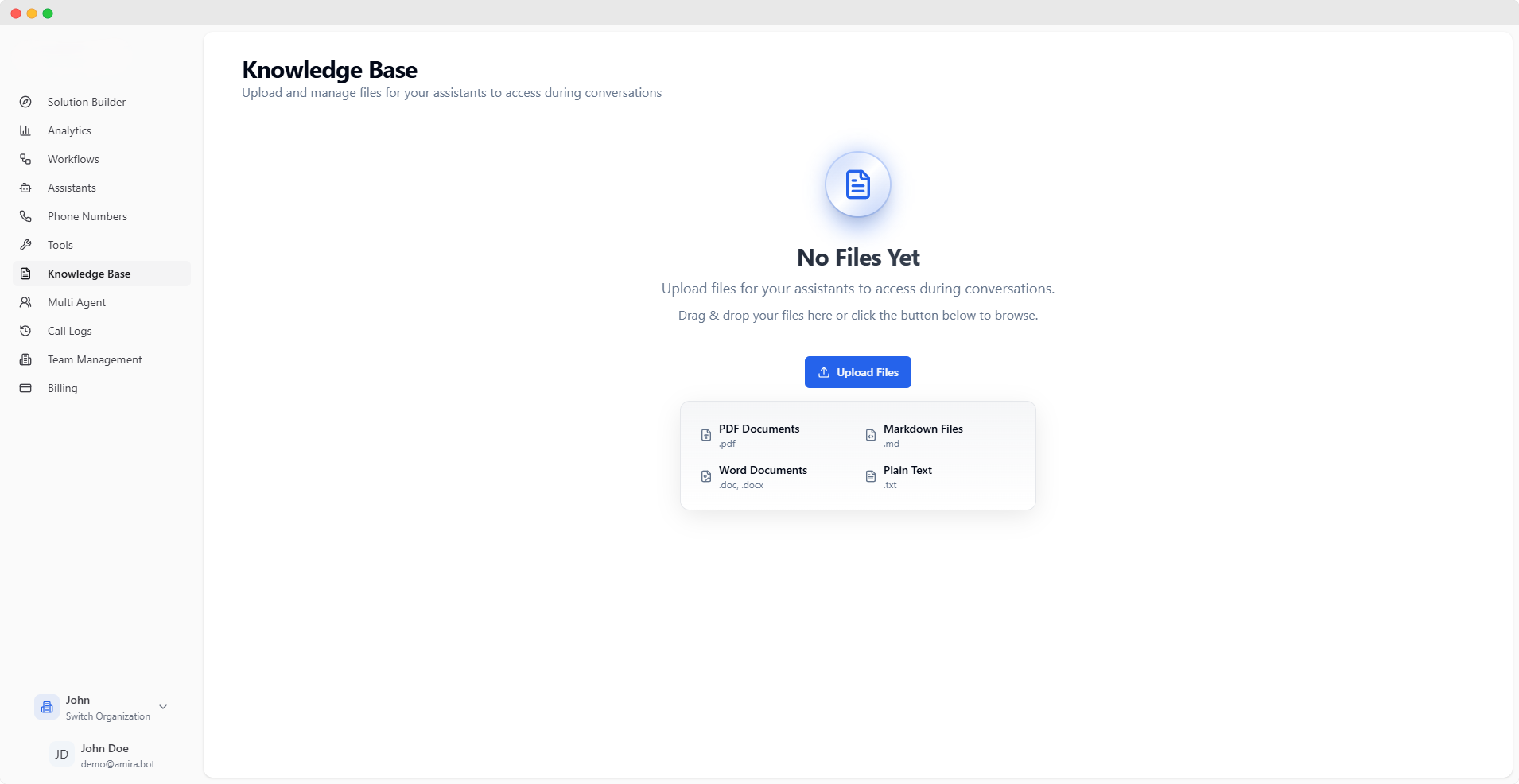 ## Document Management
Upload and manage documents that your assistants can reference during conversations. These documents serve as a knowledge source for more accurate and contextual responses.
Files uploaded to the knowledge base are processed and made available to your assistants automatically.
## Supported File Types
Professional documentation and reports
Supported extension: `.pdf`
Technical documentation and guides
Supported extension: `.md`
Business documents and reports
Supported extensions: `.doc`, `.docx`
Simple text documents and notes
Supported extension: `.txt`
## File Upload
## Document Management
Upload and manage documents that your assistants can reference during conversations. These documents serve as a knowledge source for more accurate and contextual responses.
Files uploaded to the knowledge base are processed and made available to your assistants automatically.
## Supported File Types
Professional documentation and reports
Supported extension: `.pdf`
Technical documentation and guides
Supported extension: `.md`
Business documents and reports
Supported extensions: `.doc`, `.docx`
Simple text documents and notes
Supported extension: `.txt`
## File Upload
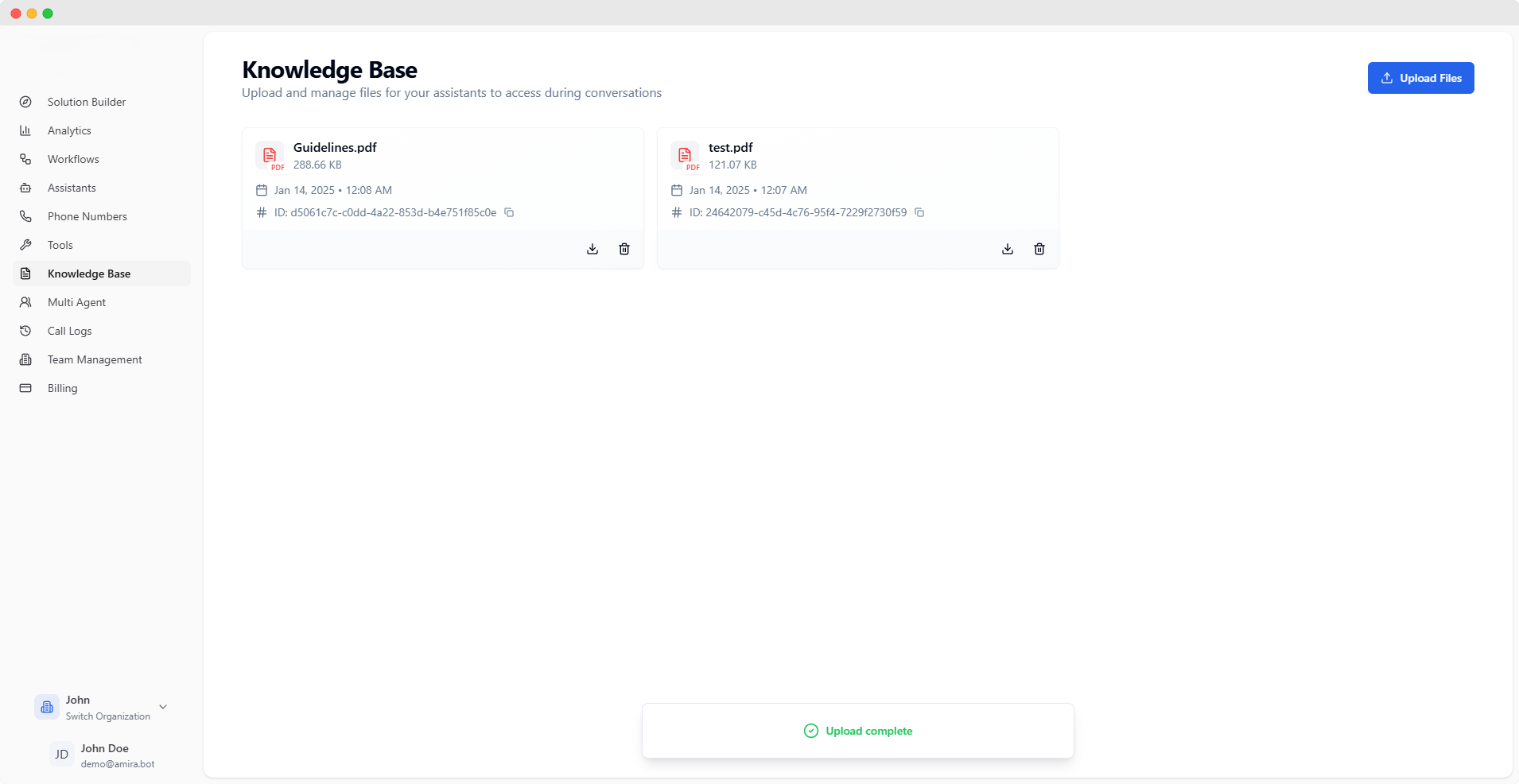 ### Upload Methods
Simply drag your files onto the upload area
Files will be processed sequentially
Click 'Upload Files' to select multiple files
Choose files from your computer
### File Management
After upload, you can:
* View uploaded files
* Download files for reference
* Delete individual files
* Monitor processing status
## Best Practices
Keep related documents together for better context
Keep your knowledge base current and relevant
Ensure documents are clear and well-formatted
For optimal results, ensure your documents are well-formatted and contain clear, relevant information that your assistants can reference during conversations.
### Upload Methods
Simply drag your files onto the upload area
Files will be processed sequentially
Click 'Upload Files' to select multiple files
Choose files from your computer
### File Management
After upload, you can:
* View uploaded files
* Download files for reference
* Delete individual files
* Monitor processing status
## Best Practices
Keep related documents together for better context
Keep your knowledge base current and relevant
Ensure documents are clear and well-formatted
For optimal results, ensure your documents are well-formatted and contain clear, relevant information that your assistants can reference during conversations.