> ## Documentation Index
> Fetch the complete documentation index at: https://docs.voicebot.studio/llms.txt
> Use this file to discover all available pages before exploring further.
# Tools
> Create and manage custom tools for your assistants
 ## Custom Tools
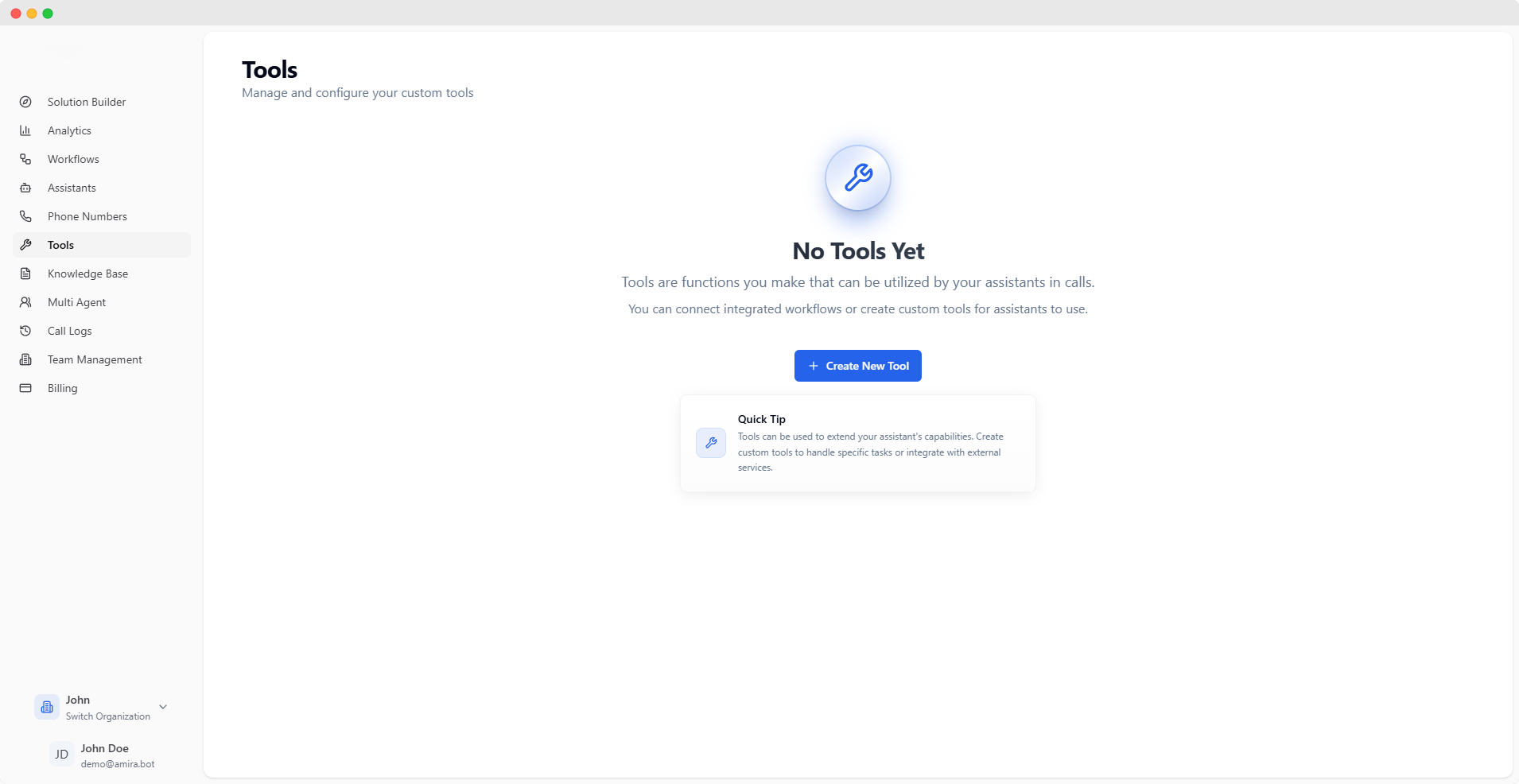
Tools extend your assistant's capabilities by connecting to external services or implementing custom functionality. Each tool is configured through a simple four-step process.
Tools can be used to integrate with your existing systems, fetch data, or perform custom actions during calls.
## Creating a Tool
## Custom Tools
Tools extend your assistant's capabilities by connecting to external services or implementing custom functionality. Each tool is configured through a simple four-step process.
Tools can be used to integrate with your existing systems, fetch data, or perform custom actions during calls.
## Creating a Tool
 ### Server Configuration
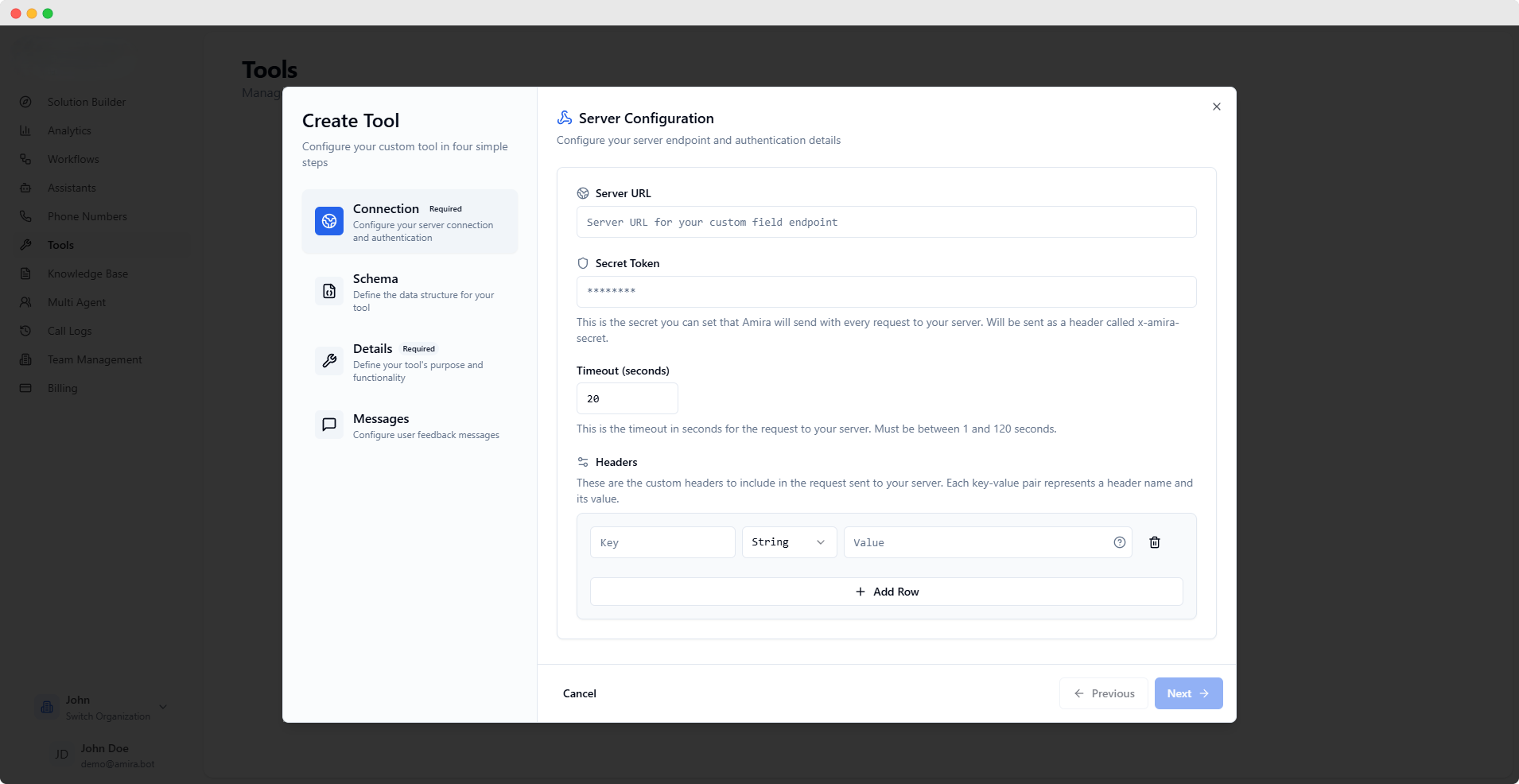
Endpoint where your tool implementation is hosted
This is the URL that will be called when your tool is invoked
Authentication token sent with each request
Sent as `x-amira-secret` header for request verification
Maximum time to wait for server response
Must be between 1 and 120 seconds
### Custom Headers
Additional headers for server requests
Each header can be configured with:
* **Key**: Header name
* **Value**: Header value
* **Type**: String, Number, Boolean, or Object
The Server URL is required to proceed. Other connection settings are optional but recommended for security and reliability.
### Server Configuration
Endpoint where your tool implementation is hosted
This is the URL that will be called when your tool is invoked
Authentication token sent with each request
Sent as `x-amira-secret` header for request verification
Maximum time to wait for server response
Must be between 1 and 120 seconds
### Custom Headers
Additional headers for server requests
Each header can be configured with:
* **Key**: Header name
* **Value**: Header value
* **Type**: String, Number, Boolean, or Object
The Server URL is required to proceed. Other connection settings are optional but recommended for security and reliability.
 ### Data Structure
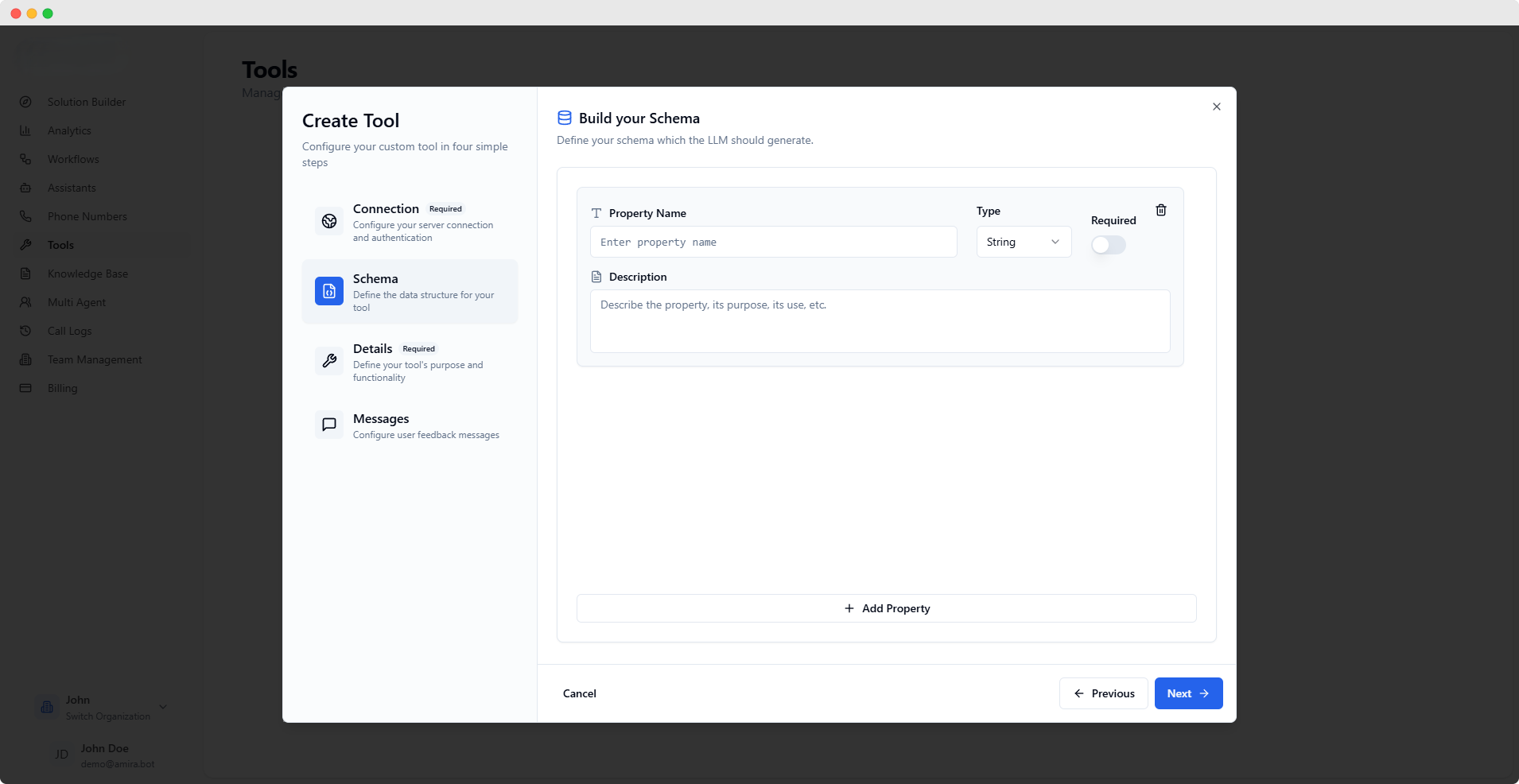
Define the expected data structure for your tool:
Each property requires:
* **Name**: Unique identifier
* **Type**: Data type (string, number, boolean, object, array)
* **Required**: Whether the field is mandatory
* **Description**: Clear explanation of the property's purpose
A well-defined schema helps the AI understand and correctly format data for your tool.
### Data Structure
Define the expected data structure for your tool:
Each property requires:
* **Name**: Unique identifier
* **Type**: Data type (string, number, boolean, object, array)
* **Required**: Whether the field is mandatory
* **Description**: Clear explanation of the property's purpose
A well-defined schema helps the AI understand and correctly format data for your tool.
 ### Tool Information
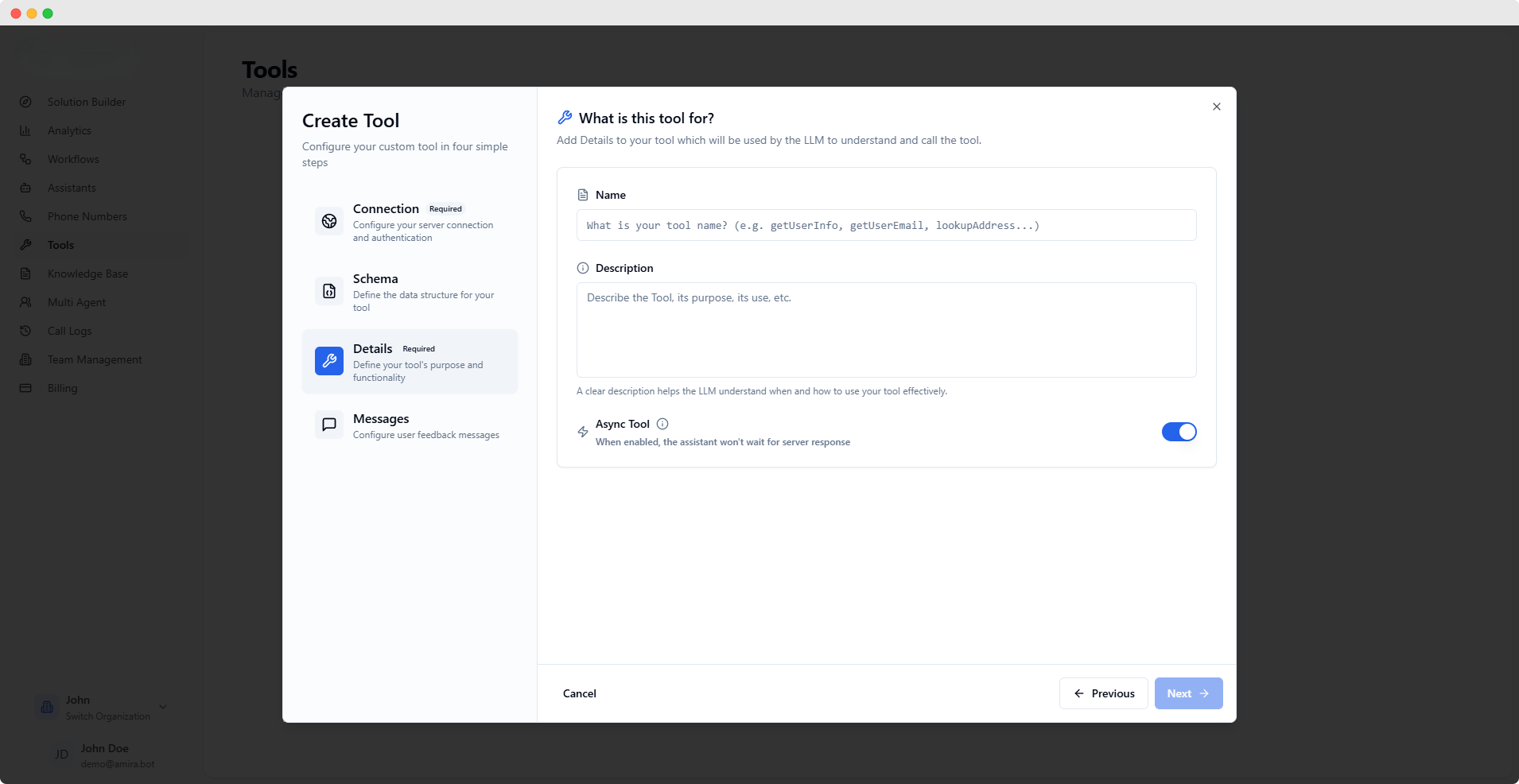
Unique identifier for your tool
Example: getUserInfo, lookupAddress, validateEmail
Detailed explanation of your tool's purpose and functionality
Help the AI understand when and how to use this tool effectively
Enable for non-blocking tool execution
When enabled, the assistant continues conversation without waiting for tool response
The tool name is required and should clearly indicate its functionality.
### Tool Information
Unique identifier for your tool
Example: getUserInfo, lookupAddress, validateEmail
Detailed explanation of your tool's purpose and functionality
Help the AI understand when and how to use this tool effectively
Enable for non-blocking tool execution
When enabled, the assistant continues conversation without waiting for tool response
The tool name is required and should clearly indicate its functionality.
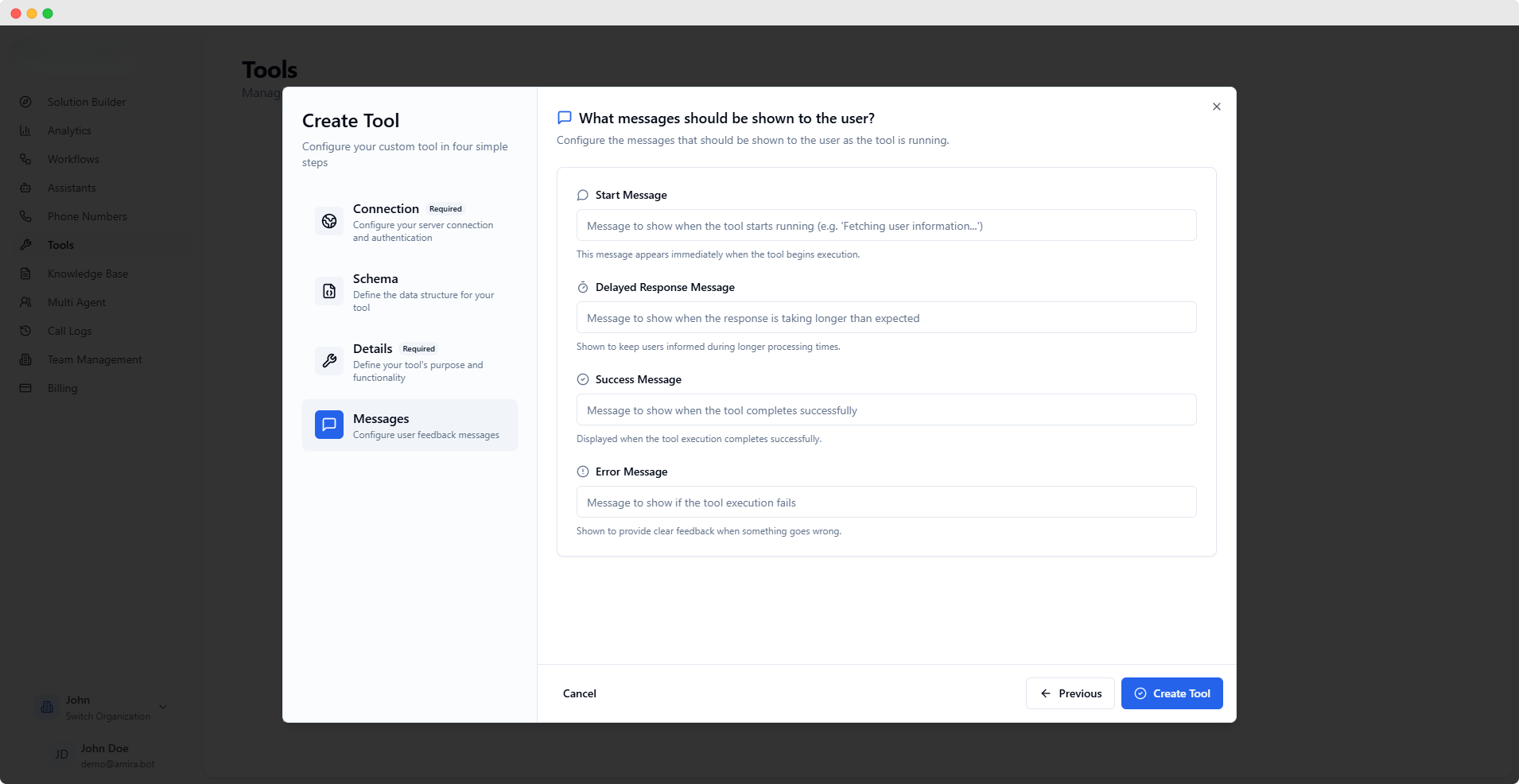 ### User Feedback
Shown when tool execution begins
Example: "Fetching user information..."
Displayed during longer processing times
Example: "Still processing your request..."
Shown upon successful completion
Example: "Information retrieved successfully"
Displayed if tool execution fails
Example: "Unable to fetch information. Please try again."
Clear user messages improve the conversation experience by keeping users informed of tool status.
## Best Practices
Always use authentication and validate requests using the secret token
Set appropriate timeouts and handle errors gracefully
Provide clear feedback messages for all tool states
Test your tools thoroughly before using them in production environments. Monitor their performance and user feedback to optimize their effectiveness.
### User Feedback
Shown when tool execution begins
Example: "Fetching user information..."
Displayed during longer processing times
Example: "Still processing your request..."
Shown upon successful completion
Example: "Information retrieved successfully"
Displayed if tool execution fails
Example: "Unable to fetch information. Please try again."
Clear user messages improve the conversation experience by keeping users informed of tool status.
## Best Practices
Always use authentication and validate requests using the secret token
Set appropriate timeouts and handle errors gracefully
Provide clear feedback messages for all tool states
Test your tools thoroughly before using them in production environments. Monitor their performance and user feedback to optimize their effectiveness.